Quick Answer
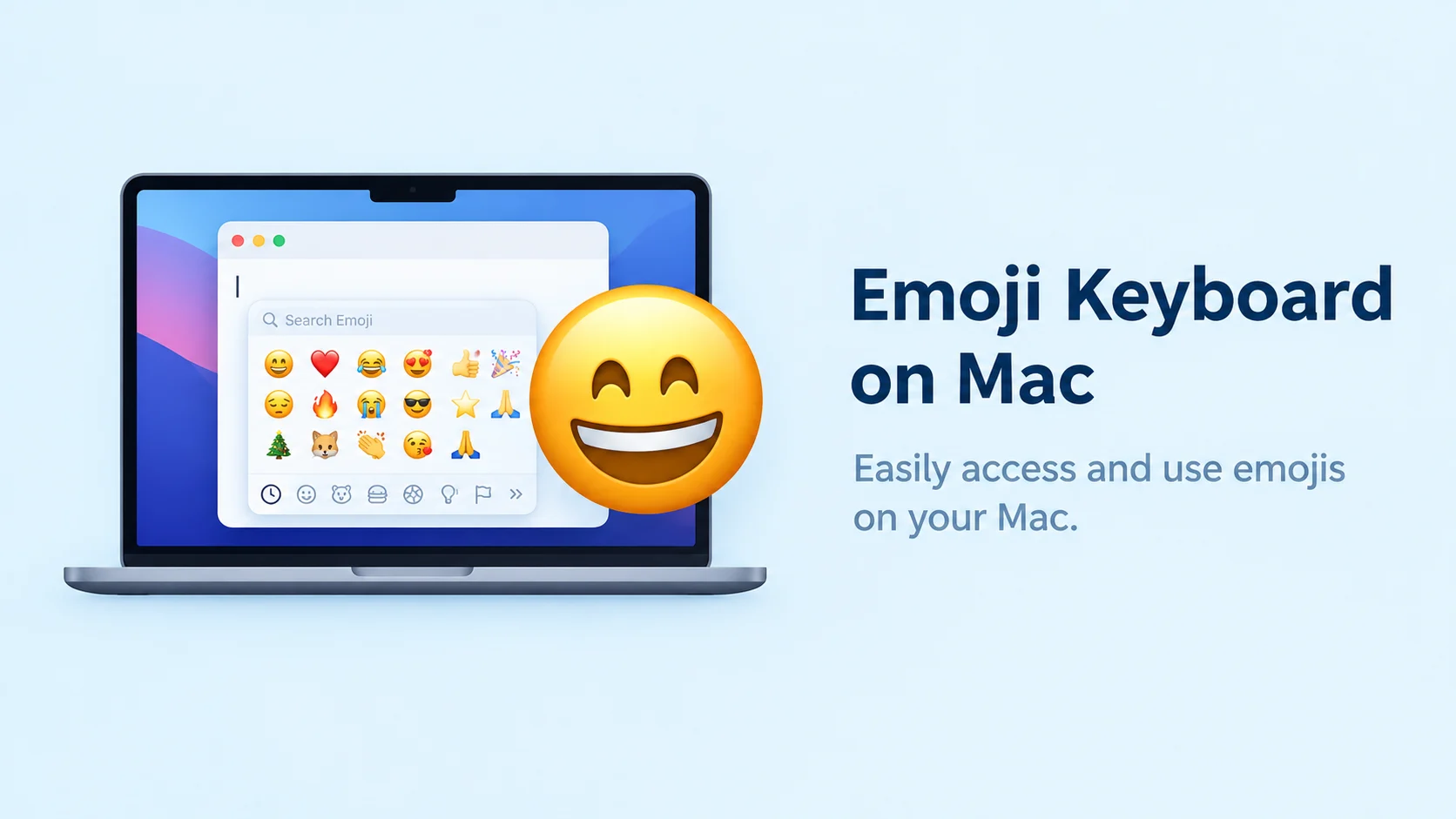
To open the emoji keyboard on Mac, press Control + Command + Space (⌃ + ⌘ + Space) on your keyboard. The Character Viewer will appear, allowing you to search for emojis, symbols, and special characters. Select an emoji to insert it into a text field, document, email, or supported app.
The emoji keyboard on Mac makes it easy to add smiley faces, hearts, hand gestures, flags, and other symbols to your messages. You don’t need to copy emojis from a website every time you want to use one.
The quickest method is the Control + Command + Space keyboard shortcut. It opens Apple’s Character Viewer, where you can browse emoji categories or search for a specific emoji by name.
You can use the emoji picker in many apps, including messaging apps, email editors, and text documents. Depending on your macOS version and the app you’re using, the viewer’s appearance and available options may vary.
How to Open the Emoji Keyboard on Mac
The fastest way to open the emoji picker is to use a keyboard shortcut. Apple calls this feature the Character Viewer, and it includes emojis, symbols, and special characters. Apple Support (UK)+1
Method 1: Use the Keyboard Shortcut
- Open a text message, document, email, or another editable text field.
- Press Control + Command + Space.
- Wait for the Character Viewer to appear.
- Search for an emoji, such as “heart,” “laughing face,” or “thumbs up.”
- Click the emoji to insert it into your text.
For example, searching for “heart” can help you find ❤️, 💙, and other heart emojis.
Method 2: Use the Fn or Globe Key
On supported Mac keyboards, you can also press Fn + E or Globe + E to open the emoji picker or display emoji suggestions. The available behavior depends on your keyboard settings. Apple Support (UK)+1
Method 3: Open Emoji from the Menu Bar
If the keyboard shortcut doesn’t work, try this method:
- Open an app where you can type.
- Click Edit in the menu bar.
- Select Emoji & Symbols.
- Find and select the emoji you want to use.
This is a useful alternative when you prefer using your mouse.
Emoji Keyboard on Mac: How to Open and Use It
The emoji keyboard on Mac lets you insert smiley faces, hearts, flags, symbols, and other special characters into messages and documents. You can open it with a simple keyboard shortcut instead of searching for emojis online.
The quickest way to access the emoji picker is to press Control + Command + Space (⌃ + ⌘ + Space). This opens the Character Viewer, where you can browse different emoji categories or search for a specific symbol.
You can use the emoji keyboard when writing emails, chatting with friends, creating documents, or posting on social media. For example, you can quickly find 😀 for happiness, ❤️ for love, or 🔥 to express excitement.
If the shortcut doesn’t work on your Mac, you can also open the emoji picker through the app’s menu bar. The exact appearance may vary depending on your macOS version, but the main purpose remains the same: helping you find and insert emojis quickly.
How to Open the Emoji Keyboard on Mac
Press Control + Command + Space while your cursor is active in a text field. The Character Viewer should appear on your screen. Search for an emoji by name or browse the available categories, then click the emoji to insert it into your text. If the shortcut doesn’t work, open a compatible app and select Edit → Emoji & Symbols from the menu bar.
How to Search for and Use Emojis on Mac
Once the Character Viewer opens, type a word such as “smile,” “heart,” “flower,” or “fire” into the search field. Choose the emoji that matches your message and click it to insert it. You can also browse categories to discover new symbols. This makes it easy to add emojis to emails, documents, and messages without copying them from another website.
How to Search for Emojis on Mac
You don’t need to browse every emoji category to find the right symbol.
- Open the Character Viewer.
- Click its search field.
- Type a word such as “smile,” “fire,” “flower,” or “flag.”
- Select the emoji that matches your needs.
You can also click and hold certain emojis to view available skin-tone variations. Apple Support (UK)+1
Related Mac Emoji Shortcuts and Features
| Shortcut or Feature | Purpose | When to Use It |
|---|---|---|
| Control + Command + Space | Opens Character Viewer | Finding emojis quickly |
| Fn + E | Opens emoji suggestions or Character Viewer | Using a supported keyboard |
| Globe + E | Opens emoji suggestions or Character Viewer | Using a configured Globe key |
| Edit → Emoji & Symbols | Opens Character Viewer | When shortcuts don’t work |
| Emoji search field | Finds emojis by name | Locating a specific emoji |
| Add to Favorites | Saves frequently used characters | Accessing favorite emojis quickly |
Why Is the Emoji Keyboard Not Opening on Mac?
If the emoji picker doesn’t appear, try these simple fixes:
- Click inside a text field first. Some apps require an active text area.
- Check the shortcut. Press Control + Command + Space together.
- Try the menu option. Open Edit → Emoji & Symbols in a compatible app.
- Check your keyboard settings. Go to System Settings → Keyboard to review your Fn or Globe key options.
- Try another app. This helps determine whether the issue is limited to one application.
Apple notes that Character Viewer can be opened through the keyboard shortcut or the Edit menu, although available options can vary by app and macOS version. Apple Support (UK)+1
FAQs
What is the emoji keyboard shortcut on Mac?
Press Control + Command + Space to open the Character Viewer and select an emoji.
How do I type emojis on a MacBook?
Click where you want to type, open the Character Viewer, and click an emoji. It will be inserted at your cursor when the app supports it.
Can I search for a specific emoji on Mac?
Yes. Open Character Viewer and enter a word such as “smile,” “heart,” or “sun” in the search field.
How do I use emojis without a keyboard shortcut?
Choose Edit → Emoji & Symbols in a compatible app.
Can I use emojis in documents and emails on Mac?
Yes. You can insert emojis into many documents, emails, and messages, depending on the app.
Conclusion
The easiest way to access the emoji keyboard on Mac is to press Control + Command + Space. From there, you can search for emojis, browse symbols, and insert characters into your text. If the shortcut doesn’t work, use Edit → Emoji & Symbols or check your keyboard settings.
Discover More Related Articles:
- Man Standing Emoji | Body Language & Symbolism In 2026
- WTF Emoji Meaning | What It Means in Text & Online In 2026

1 thought on “Emoji Keyboard on Mac | How to Open and Use Emojis In 2026”